How to Make Your Apple Watch More Useful (12 Ideas)
Within a month most Apple Watches settle into step counts and notifications. Twelve changes, from faces and gestures to giving it a job of its own, that make it worth wearing again.
Somewhere around week three, most Apple Watches settle into the same routine. It tells the time, it buzzes for messages, it closes a ring or two, and that is about it. The hardware is doing a fraction of what it can, and the novelty that had you checking your wrist on day one is gone.
The fix is not more apps. It is giving the watch jobs that only a wrist can do well: a glance that takes half a second, a gesture that needs no free hand, a tap to pay, a nudge at the right moment, an ear that is there when something worth remembering gets said.
Here are the changes that made the biggest difference for us, roughly in order of effort. Most take under five minutes. The last one is the one that changes what the watch is for.
1. Build a face for each part of your day
One watch face is why it feels static. Set up three and let them switch themselves.
- Work. Modular or Infograph Modular, with your next calendar event in the big slot, a timer, and the weather. This is the face you glance at forty times a day, so it should answer “what is next” without a tap.
- Evening. A Photos face with the depth effect on, cycling through a dozen pictures of people you like. Dull on paper, lovely in practice.
- Weekend. Something nearly empty. Solar, Numerals, or Contour, with a single complication. The watch should look different on a Saturday because the day is different.
Then tie each face to a Focus. On the iPhone, open Settings, then Focus, pick one, and choose a watch face under Customize Screens. The watch changes faces when your day changes mode, which is the small bit of magic that makes it feel alive.
2. Make the Smart Stack worth turning the crown for
Turn the Digital Crown from the watch face and you get the Smart Stack: a scroll of widgets watchOS thinks you need right now. Out of the box it guesses. It gets good once you tell it.
Press and hold a widget to pin it to the top. Pin two at most: the one you check first in the morning (calendar, weather) and the one you reach for mid-day (a timer, Now Playing, a shortcut). Remove the rest. watchOS 26 started surfacing hints, the floating suggestion that appears when it thinks you need a widget, and watchOS 27 opens any widget with a single tap, so the stack is finally quicker than hunting through the app grid.
3. Turn on the gestures nobody told you about
If you have a Series 9 or later, or an Ultra 2 or later, your watch can be driven without your other hand.
- Double Tap. Pinch your index finger and thumb together twice. It answers a call, pauses a timer, plays or pauses music, and steps through the Smart Stack from the watch face.
- Wrist Flick (watchOS 26 and later). A quick turn of the wrist dismisses a notification, silences a call, and gets you back to the face.
Both live under Settings, then Gestures. Check they are on, because neither announces itself. They are the biggest single reason the watch stops feeling like a small phone and starts feeling like something you wear.
4. Cut notifications until every buzz means something
A watch that buzzes for everything is a watch you learn to ignore, and then it is a clock. The goal is the opposite: a watch where a tap on the wrist is worth looking at every time.
On the iPhone, open the Watch app, then Notifications, and go through the list. Leave on messages from people, phone calls, calendar alerts, and two or three apps where you act on the alert. Everything else gets Notifications Off. Then under Sounds & Haptics switch haptics to Prominent so the ones that remain land.
It feels strange for a day. Then the wrist tap becomes a signal again.
5. Talk to it more
Raise your wrist and talk. On a Series 9 or later, Siri handles timers, alarms, reminders, and workout starts on the watch itself, so it is quick. “Remind me to call the dentist at two.” “Set a timer for twelve minutes.” “Start an outdoor walk.” “What is my next meeting?” watchOS 27 adds a Siri app that keeps your back-and-forth, so you can pick up a thread later, including one you started on the iPhone.
The habit to build is small: anything you would otherwise type into your phone later, say to your wrist now.
6. Put one Shortcut on your wrist
The Shortcuts app runs on the watch, and a shortcut can sit on your face as a complication or in the Smart Stack. Three that earn the spot:
- Leaving now. Texts a set contact “leaving now, home in 20” and starts directions home.
- Focus on. Switches on Do Not Disturb for 25 minutes and starts a timer.
- Log it. Appends a line with the time to a note, for anything you track: mood, caffeine, that recurring headache.
Build them on the iPhone, turn on “Show on Apple Watch” in the shortcut’s details, and they appear in the watch’s Shortcuts app. On an Ultra, the Action button can run one directly.
7. Leave your phone in your pocket
The things that feel genuinely futuristic are the ones where you never touch your phone.
- Apple Pay. Double-click the side button and hold the watch near the reader. Set a default card so it is one gesture.
- Transit cards with Express Mode tap in without waking the watch.
- Boarding passes and tickets live in Wallet. In watchOS 27, any pass with a QR code can go there too, pinned to the Smart Stack so it is up when you reach the gate.
- Unlock your Mac by sitting down in front of it. It is a checkbox in the Mac’s System Settings under Touch ID & Password.
- Camera Remote shows the iPhone’s viewfinder on your wrist with a three-second timer. Prop the phone up, walk into frame, tap.
- Ping your iPhone from Control Center. Press and hold and the phone’s flash blinks too, which finds it under the sofa cushion in the dark.
8. Try the health features beyond the rings
The Activity rings are the part everyone knows. The parts that make the watch interesting are quieter.
- Sleep. Wear it overnight and you get sleep stages plus Vitals (watchOS 11 and later): overnight heart rate, breathing rate, and wrist temperature, with a note when something drifts outside your normal range.
- Noise. It warns you when the room is loud enough to harm your hearing over time. Surprisingly often, it turns out.
- Medications. Logging and reminders, with a follow-up nudge if you forgot.
- Check In. Tell a friend you are walking home and the watch tells them when you arrive, or if you stop moving.
- Mindfulness. One minute of Breathe when the afternoon goes sideways. The feature most likely to be mocked and most likely to be used.
9. Make workouts into something you want to look at
- Custom workouts with intervals. In the Workout app, pick a type, tap the three dots, then Create Workout. A four-minute hard, two-minute easy loop with a haptic at each switch is a different sport from “start outdoor run”.
- Training Load (watchOS 11 and later) shows whether this week is heavier than your last four, which is the number that stops you overdoing it.
- Activity competitions with a friend for a week. Childish, and effective.
- Workout Buddy (watchOS 26 and later, with an Apple Intelligence iPhone nearby and headphones in) talks you through a session. In watchOS 27 the encouragement draws on your past workouts rather than canned lines.
10. Install three apps built for a glance, not a scroll
The best watch apps are the ones you open for five seconds.
- A weather app with a good complication, in the slot you will see on the way out the door. Carrot Weather, or Apple’s own.
- Podcasts or music synced offline, so a run or a walk needs no phone. Overcast, Apple Podcasts, or Spotify’s offline downloads.
- A habits or tasks app with a one-tap complication. Streaks, Things, or Todoist. One tap to mark something done is the whole value.
Avoid anything that wants you to read on the watch. If an app is a scroll on the phone, it is a worse scroll on the wrist.
11. Change the band, and when you charge it
Two physical changes, both bigger than they sound.
A new band is the cheapest, most noticed change you can make. A Sport Loop for workouts, leather or metal for the office, something loud for the weekend. Match the face colour to the band (edit the face, then Color) and it reads as a different watch. Third-party bands cost a fraction of Apple’s and fit the same lugs.
Then fix the charging routine, because half the reason a watch goes dull is that it lives on the charger. Charge it during the half hour you are showering and making coffee (Series 7 and later get to about 80% in roughly 45 minutes), then wear it to bed for sleep tracking and straight through the next day. A watch that is on your wrist 23 hours a day is a watch that has a chance to be interesting.
12. Give your watch something worth remembering
The most useful thing an Apple Watch can do might not be something you look at. It might be something you say.
Think about how many commitments happen away from your desk: “I’ll send that tonight.” “Remind me to call Sarah.” “I’ll book the hotel tomorrow.” “Can you pick up milk on the way home?” Your phone is usually in your pocket, but your watch is already on your wrist.
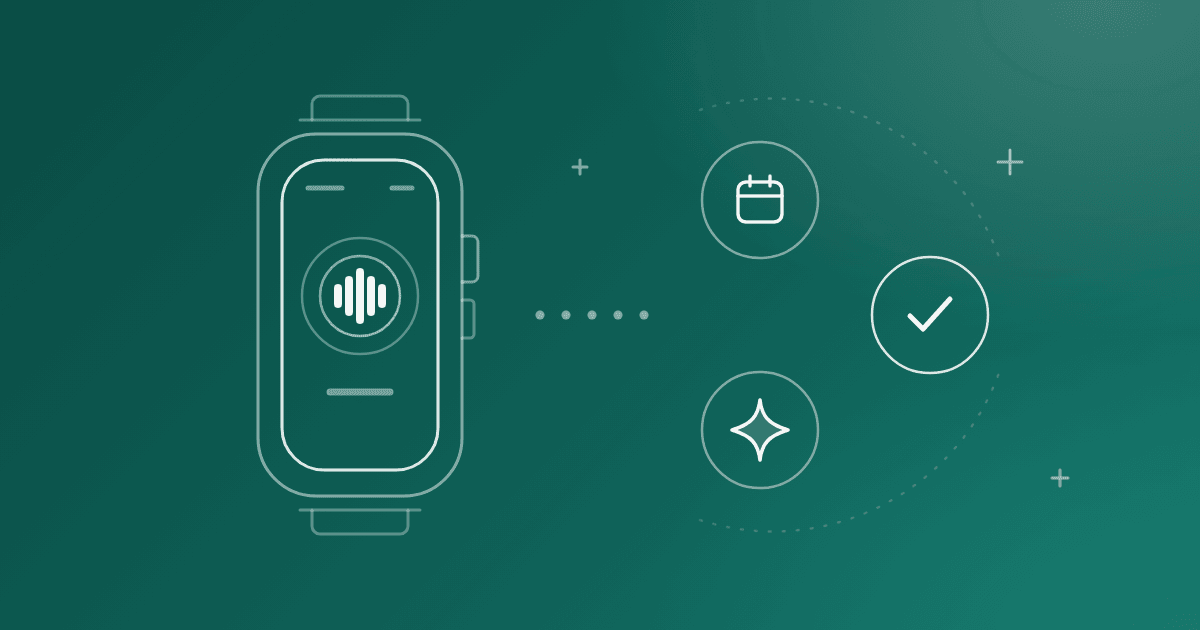
That’s the idea behind IntelliKin. Tap your watch once and it listens while you go about your day. You can use it during a conversation, on a walk, between meetings, or whenever something comes up that you don’t want to forget.
Instead of giving you another recording to sort through later, Kin turns what you said into useful things: tasks, deadlines, follow-ups, and a running record of your conversations. You can ask questions like “What did I promise Alex?” later and get an answer without digging through notes or recordings.
The important part is that you don’t have to stop what you’re doing. You don’t need to pull out your phone, open a notes app, or remember to write something down. The watch is already there.
That’s particularly useful for the small commitments that normally disappear:
“I’ll send you the deck Thursday.”
“I’ll look into that and get back to you.”
“Remind me to book the dentist.”
Those aren’t big enough to justify opening a task manager every time. But forget enough of them and they become a problem.
IntelliKin is designed to catch those moments and turn them into something you can actually act on.
It’s also deliberately built around the watch rather than treating it as a tiny iPhone. The watch handles the capture; the heavier processing happens after the recording syncs. That means you can keep the interaction as simple as possible: tap, talk, keep moving.
If you already have an Apple Watch, this is one of the more interesting ways to give it a job beyond notifications, fitness, and payments.
Try IntelliKin free if you want to see what your watch can do when it starts remembering things for you.
Where to start
Pick the two that match why the watch went quiet.
- It feels static. Faces tied to Focus (1), then the Smart Stack (2).
- It feels noisy. Notifications (4), then the gestures (3).
- It feels pointless. Give it a job: a Shortcut (6), Apple Pay (7), or giving it something to remember (12).
Do two today. The watch gets interesting the moment it does one thing your phone cannot, and a wrist can do several.